
Capture an element
Planned PremiumClick an element on a page and capture it as one image, including scrollable elements where the page allows it.

Capture a visible area, selected region, or full page. Mark it up, then copy or export it on your device.
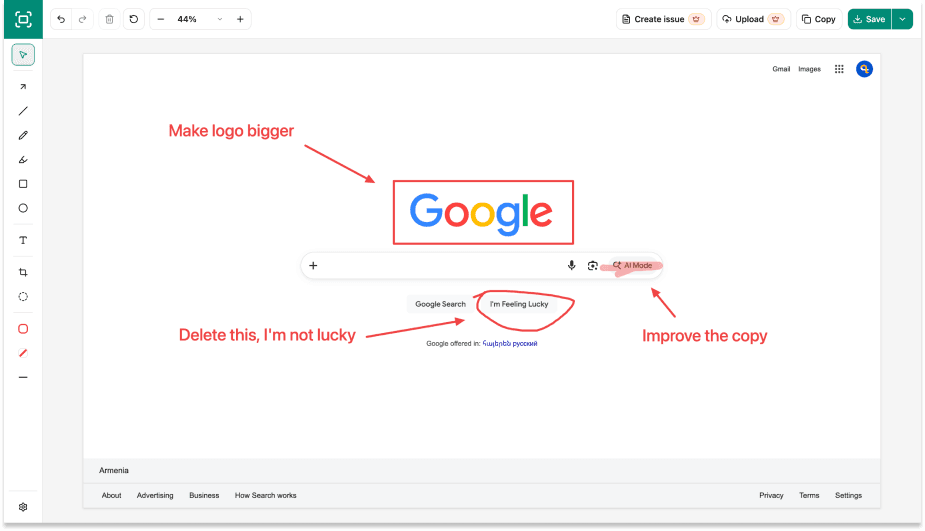
Capture the browser window as it is.
Draw around the part you need to explain.
Capture a scrolling page as one image.
Add an arrow, text, shape, crop, or blur.
Copy the result or export PNG, JPEG, or PDF.
Click an element on a page and capture it as one image, including scrollable elements where the page allows it.
Connect Dropbox or Google Drive, choose a folder, then upload the finished PNG only when you choose Upload.
Review the title, description, and screenshot before anything is sent to Linear or Jira.
Capture, annotate, and export without sending the page to a screenshot service.